Help Center
Everything you need to set up and manage your automated messages.
How Invoice Reminders Work
1. The Trigger (The Start Point)
Create your invoice in Xero as normal. The moment you click Approve, the invoice details land in your PaidInstantly Invoice Reminders page.
2. The Two Paths (The Decision)
Option A: Manual Mode (Safe Default)
If 'Auto-Send' is OFF: The invoice appears in your list with a green 'Send WhatsApp' button. When you click it, a box will pop up asking for the customer's mobile number. Simply type it in (e.g., +447...) and hit Send.
Option B: Auto Mode (Hands Free)
If 'Auto-Send' is ON: We detect the 'Approve' click in Xero and send the WhatsApp immediately using the number saved in the contact. You don't need to do anything.
3. The "First Run" Guide (Crucial New Box)
⚠️ Recommended: Do a Test Run First
Two Choices for testing:
- Option A: Use the Xero Demo Company (Risk-free).
- Option B: Use your Real Account (Faster). Create a new contact called Me, add YOUR mobile number, create a £1.00 invoice, and click Approve.
- (You can simply credit note/void the invoice afterwards)
How to use Bookkeeping Queries (Spend)
Connect the Client (One-Time Setup)
Before you can ask questions, you must connect the business owner's phone number to the system.
- 1. Go to the Bookkeeping Queries tab.
- 2. Type the Client's Phone Number (+44...) in the box.
- 3. Click Send Welcome Message.
-
Important: Wait for the client to reply "YES" on WhatsApp. This is a legal requirement by Meta for business messaging (official opt-in consent).
Ask a Question
Pick any transaction that needs an explanation and click the green 'Ask Client' button.
"We instantly WhatsApp the client: 'What was the payment to Amazon for £24.99?'"
Only unreconciled (unmatched) bank transactions from the last 3 months are shown.
Getting the Answer
When the client replies, we save it for you securely:
Manual Mode (Default)
"You choose when to sync"
Answers appear in Pending Review. You check them, then click Post to Xero. They are added as a Note to the transaction in Xero under Account Transactions. Receipt Images are also saved directly to Xero as an attachment if provided.
Automatic Mode
"Zero-touch bookkeeping"
If turned on, answers are immediately posted as a Note to the transaction in Xero and the job is marked resolved automatically. Receipt Images are also saved directly to Xero as an attachment if provided.
The Practice Sandbox
Your Practice Org (Sandbox) is a safe environment to test the system yourself. It has its own Testing Credits which reset every month, allowing you to trial the flow without using up your real client seats or credits.
How Credits Work
Credits are pooled and shared across both Invoice Reminders and Bookkeeping Queries. They reset automatically at the start of your personal monthly billing cycle. One credit is consumed for each successful interaction.
Pro Tip: Non-Replies
If a client misses a message, you can click Send Again in the History tab to nudge them manually.
Manual vs Automatic
We suggest using Automatic Mode for trusted clients. Use Manual Mode if you prefer reviewing replies before they touch your Xero records.
Message Templates
The 3 Green WhatsApp Bubbles (Polite, Professional, Urgent).
Polite
Sarah, hope you are well! Your invoice from Dave's Plumbing for £85.00 is ready. https://in.xero.com... Thanks
Professional
Dear Tech Corp, please accept invoice #INV-2024 for £1,250.00. Due 31 Jan. https://in.xero.com... Regards
Urgent
Hi Mike, invoice #INV-1009 for £450.00 is OVERDUE. Pay immediately: https://in.xero.com... Thank you
Note: The link shown above (https://in.xero.com...) is just a placeholder example. When you send a real message, it is automatically replaced by the real, unique Xero payment link for that specific invoice. **Crucial Step:** To ensure your clients can actually pay the invoice via the link, you must have an active Payment Service (like Stripe or GoCardless) connected in Xero. You can check this in Xero by going to Settings > Payment services.
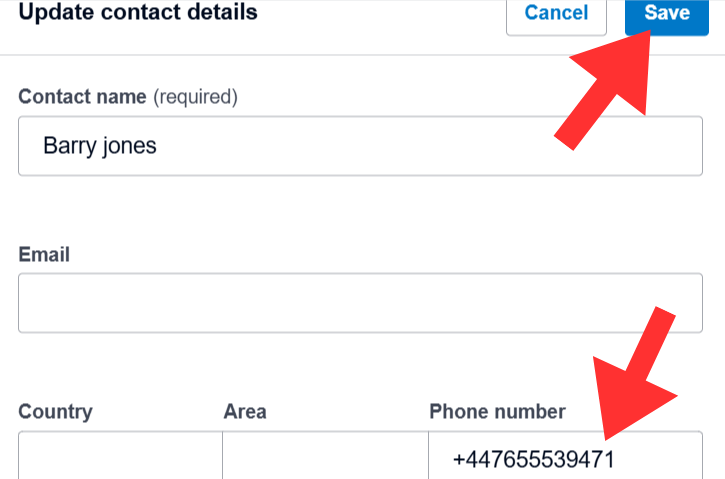
Saving Numbers in Xero
The guide on using +44 formatting and the Contact field.
For automation to work, mobile numbers must be saved in the specific format below.
-
✓Use +44 format (drop the first 0)
-
✓Add to Phone number field
-
✓Click Save (Critical!)
Common Issues & Troubleshooting
The Hit 20 Limit and Message didn't send tips.
Message didn't send?
Check the phone number is in +44 format. Standard 07... numbers will fail. Format: +447... or 07... (Our system accepts both formats securely!)
Customer didn't receive?
Confirm they have WhatsApp installed and valid account on that number.
Credit limit reached?
You may have hit your monthly allowance. Email support or use the "Upgrade" link in your account settings to unlock more credits.
Auto-send failed?
Did you click Save in Xero? The webhook only fires on the 'Save' action.
Still need help? We're here for you.
hello@paidinstantly.co.uk+44 7426 907849